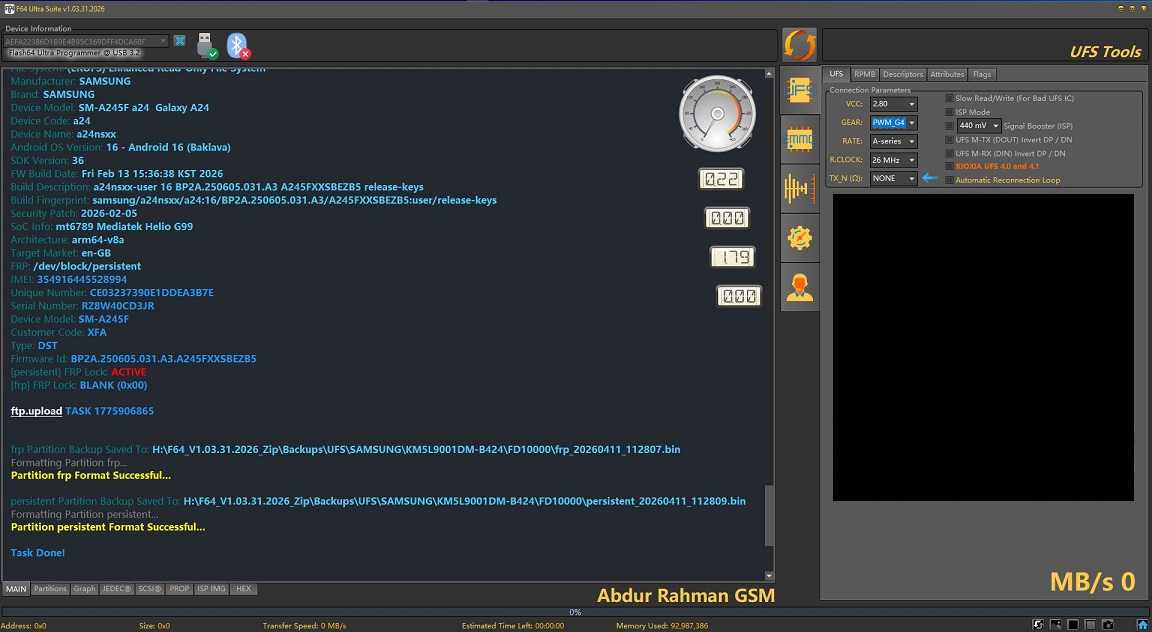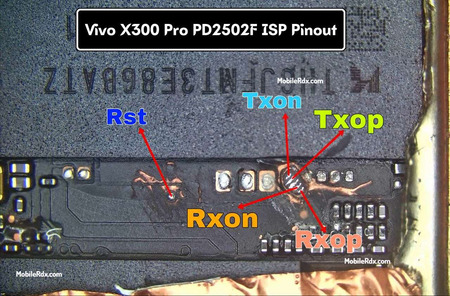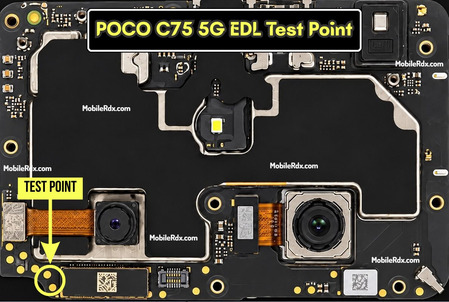

Oppo Find X8 ISP pinout helps mobile technicians to directly access the device’s UFS chip. It’s useful for tasks such as writing a dump file, chip reprogramming, flashing firmware, removing the FRP lock, bypassing FRP, unlocking the device, and restoring the stock firmware with any UFS repair tool.
What is ISP pinout?
ISP in system programming allows us to have direct access to the eMMC/UFS memory with the device still soldered to the PCB (printed circuit board) using a proper box/dongle, such as Flash64 UFI, Easy-JTAG, or Medusa.
By using the ISP pinout, we can perform operations such as a full dump, firmware update, boot repair, FRP removal, and security backup without requiring a chip-off procedure. That way, we reduce our time, costs, and risks of damaging the PCB
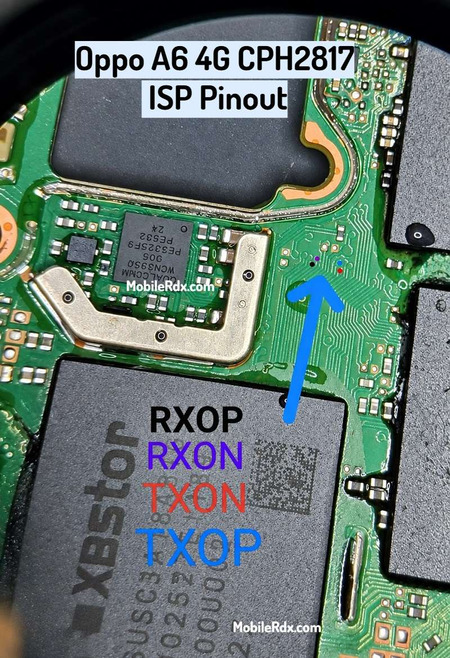
Oppo Find X8 ISP Pinout Image:
The Oppo Find X8 uses a strong glue on the back cover, so you’ll want to be careful when removing it. Use a proper opening tool and controlled heat so as not to damage the panel. Open the device and remove the motherboard shield to access the UFS chip and the ISP test points.
| RX0P | Receive Positive Line |
| RX0N | Receive Negative Line |
| TX0P | Transmit Positive Line |
| TX0N | Transmit Negative Line |
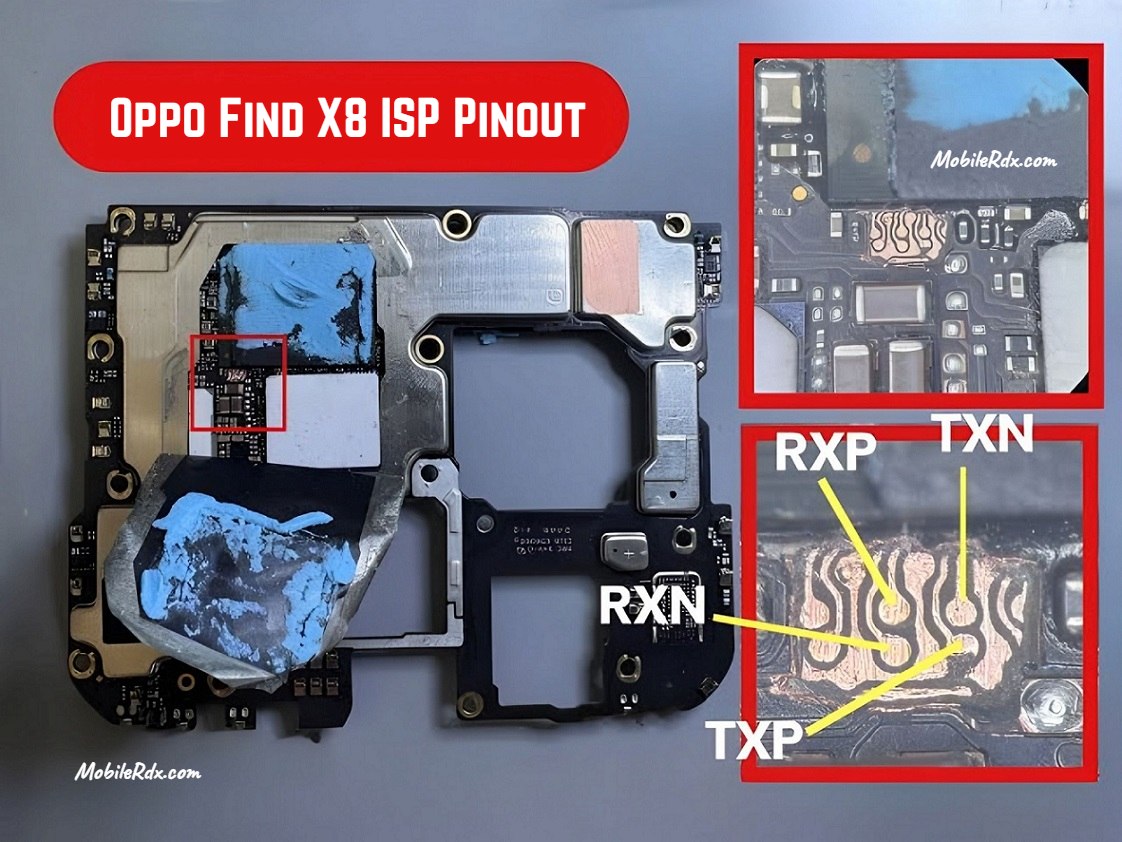
Tip: Use a microscope or a 10x magnifier to identify the points correctly. Don’t depend only on diagrams; confirm the layout visually.
Required Tools for ISP Pinout:
- Make sure your table is set up with the right tools before jumping in:
- UFI Box, Flash64, or EasyJtag
- 0.1mm – 0.3mm jumper wire
- Fine tip soldering iron
- Isopropyl Cleaner (IPA 99%)
- Soldering flux
- Multimeter (for checking continuity)
How to Connect Oppo Find X8 ISP to the UFS Box
1. Hardware Preparation
- Safety: Remove the battery to prevent electrical shorts or voltage surges.
- Cleaning: Use isopropyl alcohol to clean the ISP points on the PCB.
- Soldering: Securely jumper wires to the TXOP, TXON, and RXOP points.
- Verification: Use a multimeter to check for shorts between lines or to ground.
2. Box Connection
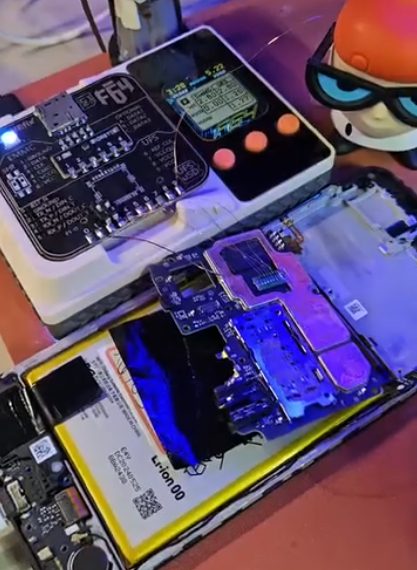
- Connect the jumper wires to your UFI Box, EasyJTAG, or Medusa Pro adapter according to the tool’s specific pinout.
- Supply power to the board via the VCC/VCCQ pins or by connecting a USB cable to the device.
3. Software Configuration
- Open the eMMC/UFS tool software.
- Select Identify eMMC/UFS.
- If successful, the chip information (CID and user area size) will populate the log.
- Navigate to User Partition > Special Task.
- Select Reset FRP or Factory Reset to complete the operation.