


UMT Tool Setup QCFire v14.3 – MTK2 v3.7 Tool Setup Latest Version
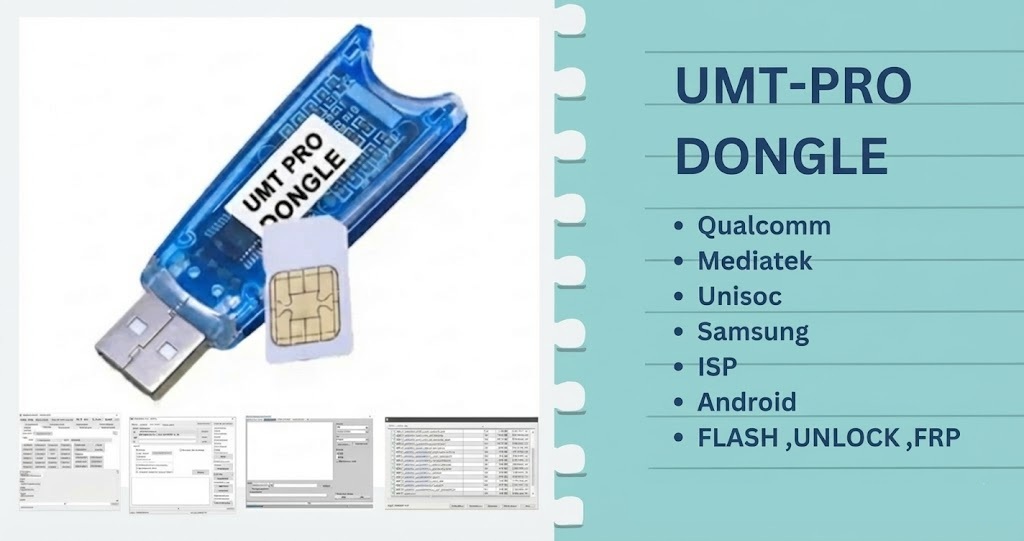
UMT Tool is a smart servicing tool for MTK, Qualcomm and SPD chipset based phones. You can use it to repair software issues, remove FRP lock, format user data, miaccount unlock, remove MDM lock and also repair or change IMEI number of supported devices. Best part of UMT Tool is that its IMEI and FRP features work on most of the compatible models without switching to another software
You can fix IMEI numbers, back up and restore NV data and manage partitions of EFS. Root access works on many different chipsets too. Just download the setup of the UMT Tool, install it on your PC and plug the dongle to get started.
UMT Tool Feature:
- Read / Write Firmware
- Backup / Restore QCN
- IMEI Repair in FTM/Diag + Flash Mode
- Backup / Reset / Restore Security (EFS)
- Reset FRP (Google Factory Reset Protection)
- Format UserData
- Read Pattern Lock (Android < 6.0, Un-Encrypted Devices Only)
- Reset Locks (PIN, Password, Pattern w/o Data Loss, Un-Encrypted Devices Only)
- Enable Diag (Need OEM Unlock, May not work on BL Locked Devices)
- Reboot to EDL from Fastboot
- Reset Mi Account for Xiaomi Devices
- Disable Mi Account for Xiaomi Devices
- Factory Reset (sideload Mode) for Xiaomi Devices
- Disable / Restore Locks for Encrypted Userdata
- Xiaomi EDL Locked Device Service
- Bootloader Unlock in EDL Mode for some Xiaomi Devices
- One-Click Root in EDL Mode for Generic Qualcomm Devices
- One-Click Lock Reset for Vivo Phones (Encrypted Userdata)
- Factory Method for Format FS
- EDL Authentication using Xiaomi Auth App (Service Account Required)
- Xiaomi Wipe EFS in Sideload Mode
- MI IMEI Repair for RSA-Protected Phones
- Xiaomi Boot Loader Unlock
- Unique Method for Vivo Reset Locks for Protected Devices
- Xiaomi EDL Auth Using UMT Server
- Xiaomi Flashing in Fastboot Mode
UMT Tool All Module Download Links:
Password: UmtTeam
- UMTv2_UMTPro_QcFire: Download – Mirror – (v14.3) – Password : UmtTeam
- UMTv2_UMTPro_UltimateMTK2: Download – Mirror – (v3.7) [New]
- UMTv2_UMT Pro_ Unisoc: Download – Mirror (v1.7)
- UMTv2_UMTPro_UltimateMTK: Download – Mirror – (v5.1)
- UMTv2_UMT Pro_ UltimateSams : Download – Mirror(v.0.6)
- UMTv2_UMTPro_GSM: Download – (v5.5.1)
- UMTv2_UMT Pro_FRP : Download – Mirror – (v.0.5.1)
- UMTv2 / UMTPro – UltimateEMMC: Download – Mirror – (v0.4.1)
- UMTv2_UMTPro_Huawei: Download (v1.2)
- UMTv2_UMTPro_UltimateLG: Download – Mirror – (v0.5)
- UltimateNCKHuawei_Module: Download (v3.25)
- Avenger Box Setup for UMT PRO: Download
- UMTv2_UMTPro_CDMA: Download – (v2.00)
How to Install and Use the UMT Tool
Setting up the UMT Dongle on your PC is straightforward if you follow these steps carefully.
Step 1: Install the Software
- Download the required UMT module (e.g., QCFire or MTK2) from the links above.
- Extract the downloaded .rar or .zip file using the password: UmtTeam.
- Run the installer .exe as an administrator and follow the on-screen instructions to complete the setup.
Step 2: Connect Your Dongle & Device
- Insert your physical UMT Dongle into a working USB port on your computer.
- Open the installed UMT software module. Allow the tool to detect your dongle and install any necessary smart card drivers.
- Connect your Android device to the PC using a high-quality USB cable.
Special Connection Method for Newer Samsung Devices:
If you are working with newer Samsung firmware, a standard EDL connection might fail. Use this exact method:
- Hold both the Volume Up + Volume Down buttons on the device.
- Hold the button on your EDL Cable.
- Insert the cable into the device while holding the EDL button.
- Rapidly click both Volume Up + Volume Down simultaneously (on newer firmware, you may need to click them rapidly 10 to 20 times).
- Once connected in EDL Mode, stop clicking the volume buttons.
Note: It’s essential to ensure your GSM device is compatible with UMT Dongle before installing the software. You should also back up your device data before using UMT Dongle to perform any actions on your device.
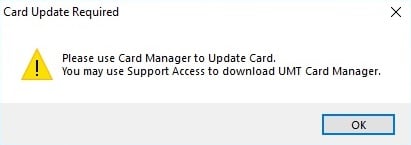
Solution To Fix Card Update Required:
If you open the software and receive a “Card Update Required” prompt, do not panic. Simply download the UMT Card Update Tool, run the application, and click Update Card Counter. Restart your software, and it will work normally.
UMT QcFire v14.3 Changelog:
Added:
Samsung
- Galaxy A05s (SM-A057F) BIT-F
- Galaxy A05s (SM-A057M) BIT-F
- Galaxy A23 5G (SM-A236B) BIT-F
- Galaxy A23 5G (SM-A236E) BIT-F
- Galaxy A23 5G (SM-A236E) BIT-G
- Galaxy A23 5G (SM-A236M) BIT-F
- Galaxy A23 5G (SM-S236DL) BIT-H
- Galaxy S22 5G (SM-S901N) BIT-9
- Galaxy S22+ 5G (SM-S906E) BIT-E
- Galaxy S24 Ultra (SM-S9280) BIT-6
- Galaxy Tab A9+ (SM-X210) BIT-C
- Galaxy Tab A9+ (SM-X210R) BIT-7
- Galaxy Tab S9 Ultra (SM-X916B) BIT-6
- Galaxy Tab S9+ (SM-X816B) BIT-6
- Galaxy XCover6 Pro (SM-G736B) BIT-C
- Galaxy Z Flip3 5G (SM-F711B) BIT-I
- Galaxy Z Flip6 (SM-F741B) BIT-4
- Galaxy Z Fold4 (SM-F936N) BIT-8
Updated Internal Loader Database
CONNECTION METHOD FOR SAMSUNG:
The method to connect some Samsung Devices is already in the log.
For newer devices, do the following:
– Hold VOL UP + DOWN on Device.
– Hold Button on EDL Cable.
– Insert the cable into the device while holding the EDL Cable Button.
– Now rapidly click both VOL UP + DOWN at the same time.
– Once you have clicked VOL UP + DOWN more than 3 times, leave the EDL Cable Button but keep rapidly clicking VOL UP + DOWN.
– Stop clicking VOLUME Buttons once device is connected in EDL Mode.
– On new firmware version, you need to click VOL UP + DOWN rapidly for around 10-20 times.
UMTv2/UMTPro – UltimateMTK v3.7 Changelog:
Lenovo
– Idea Tab Pro (TB373FU)
– M10 Plus (TB-X606V)
– Tab Plus (TB351FU)
Oukitel
– RT2
– RT6
– WP19
T-Mobile
– Revvl Tab 5G
Updated Motorola Fastboot FRP/BL Unlock
– Fixed Erase FRP issues on some devices
Added the following lk in Motorola Fastboot Method
– XT2255-2 (T2SVS33.68-21-10-21)
– XT2343-5 (V1TDS35H.83-20-5-12)
– XT2503-2 (W1VC36H.14-20-12)
Added GPT Analysis in Read Info
– Check for corruption in Header and Table
– Check for errornous values
– Check for out of bound partition addresses
Added New Model Files in Oppo DL Error Fix
– RMX2151
– RMX2155
Added Dump Analyzer and Extractor
– Analyze GPT for corruption
– Verify Source Disk Size
– Partition Length and Offset Boundry Check
– Extract only partitions you need
– Auto verify if target location has enough space for extraction
Important Notes:
- You can flash device with both BROM and Preloader mode
- If default DA does not work, use own DA in custom DA
- Force BROM may not work on new security, use Test Point instead
- When using Test Point, you must select Preloader in PL (not needed when flashing)
- If you need to connect device in Preloader mode, you must select PRELOADER in connection settings, otherwise software will try to Crash Preloader (may not work on new security devices)
Pros & Cons of Using UMT Tool
| Pros | Cons |
|---|---|
| Wide compatibility with many brands. | Requires dongle activation. |
| Handles FRP bypass, IMEI repair, and flashing in one tool. | Needs technical knowledge to use correctly. |
| Reguler updates (UMT Qfire, MTK Tool). | Some features may not be legal everywhere. |
Frequently Asked Questions
It is a small USB device (dongle) used to fix Android phones. It helps you flash software, unlock locks, and repair system errors.
It works with many popular brands like Oppo, Vivo, Xiaomi (Redmi), and Samsung. It supports phones with Qualcomm, MTK, SPD, and Unisoc chips.
Yes. It can easily remove or reset PINs, Patterns, and Fingerprint locks if you forget them.
You need the internet to download the setup files and to register your dongle using the UMT Support Access tool.
No, it is a paid tool.. To continue using the latest features, you must purchase the physical UMT Dongle and renew your activation annually.
No. You must plug the UMT V2 or UMT Pro dongle into a USB port on your computer for the software to function properly.
Open the UMT Support Access tool on your PC. From there, you can see and download the newest versions of all modules like QCfire or MTK.

3 Comments
Thanks alot for your share mobilerdx, really helpfull share 😉
I’m with Andreana on this!Thanks alot for the share!
One of the most Helpful Website On WEB. All the needed Applications and Drivers are available on this Website. Thanks For Sharing with us. MobileRDX Lots of Love