
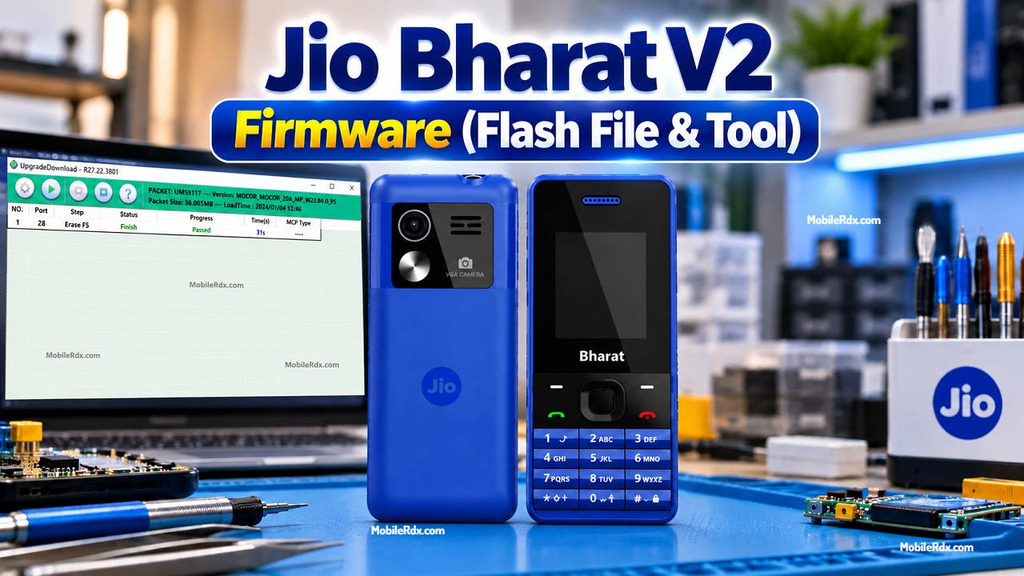
JBV161W1 firmware for Jio Bharat V2 is a stock software package that you can use to reinstall the operating system,repair the hang logo problem, fix boot loop issue, and restore a phone that got a software update failure. This is used with a suitable flash tool by Spreadtrum or Unisoc on a Windows PC.
Below you will find firmware information, required drivers and flash tool and a short method to flash Jio Bharat V2. Check the model before downloading because this package is for JBV161W1 and not for JBV162W1 or other Jio phones.
What Can This Firmware Fix?
- Phone stuck on the Jio logo
- Boot loop or repeated restart
- Failed software update
- Corrupt or damaged system software
- Forgotten password after authorised service
- Phone not starting after an incomplete flash
- Slow or unstable operating system
For other Unisoc and Spreadtrum firmware work, see our Unisoc Flash Tool guide.
Download Jio Bharat V2 JBV161W1 Firmware
| File Name | Jio_Bharat_V2_JBV161W1_000_02_09_121023_SPD.zip |
| Device | Jio Bharat V2 |
| Model | JBV161W1 |
| Firmware Build | JIO_JBV161W1_000_02_09_121023 |
| ROM Type | Stock PAC Firmware |
| File Size | 22.58 MB |
| Flash Tool | SPD Flash Tool |
| USB Driver | Spreadtrum/Unisoc USB Driver |
Some file hosts repackage firmware and display a slightly different size for the archive. Verify file name and model before loading into flash tool.
Required Files and Tools
- Jio Bharat V2 JBV161W1 firmware
- SPD Flash Tool
- Spreadtrum/Unisoc USB driver
- Good USB data cable
- Windows PC
- Stable USB port
- Backup of important data
Install correct driver first and then connect phone. If Windows fails to recognize the device remove old driver and reinstall Spreadtrum package again.
How to Flash Jio Bharat V2
- Download and extract the JBV161W1 firmware with WinRAR or 7-Zip.
- Install the Spreadtrum/Unisoc USB driver.
- Open the SPD Flash Tool as Administrator.
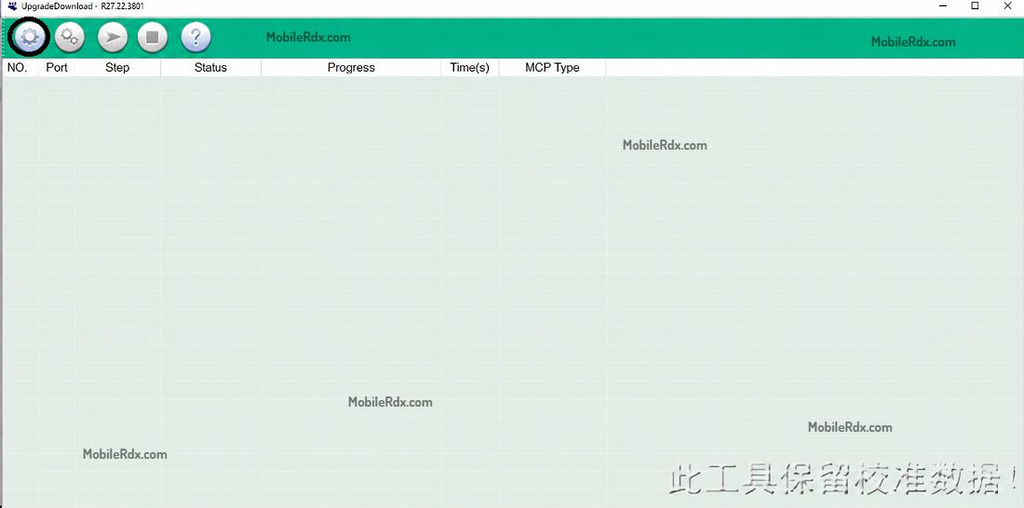
- Click the Load Packet or gear button.
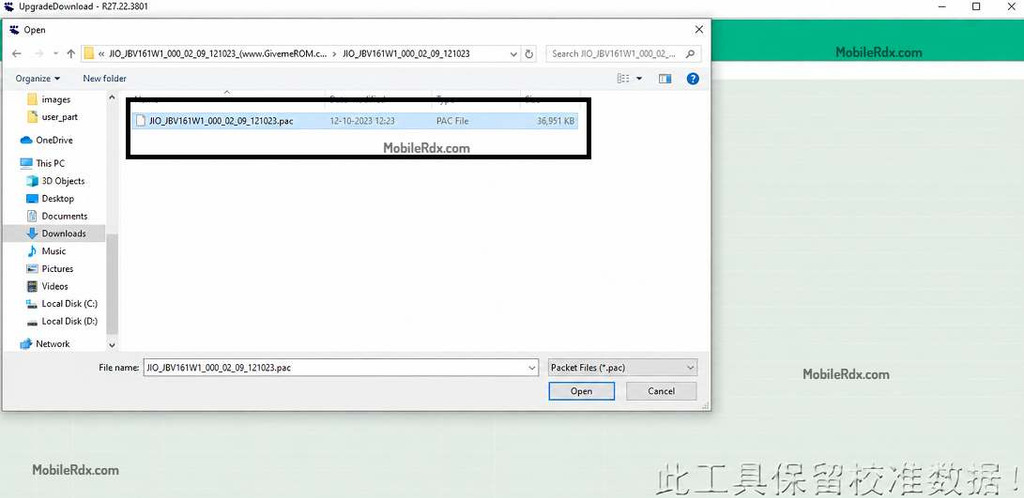
- Select the PAC file from the extracted firmware folder.
- Power off the Jio Bharat V2 completely.
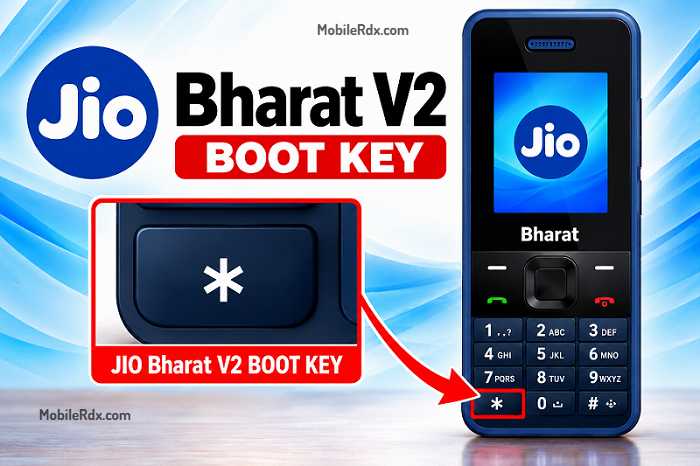
- Press and hold the Star * key.
- Connect the phone to the PC using a USB data cable.
- Wait for the SPD port to appear in the tool.
- Click Start, Download, or the play button.
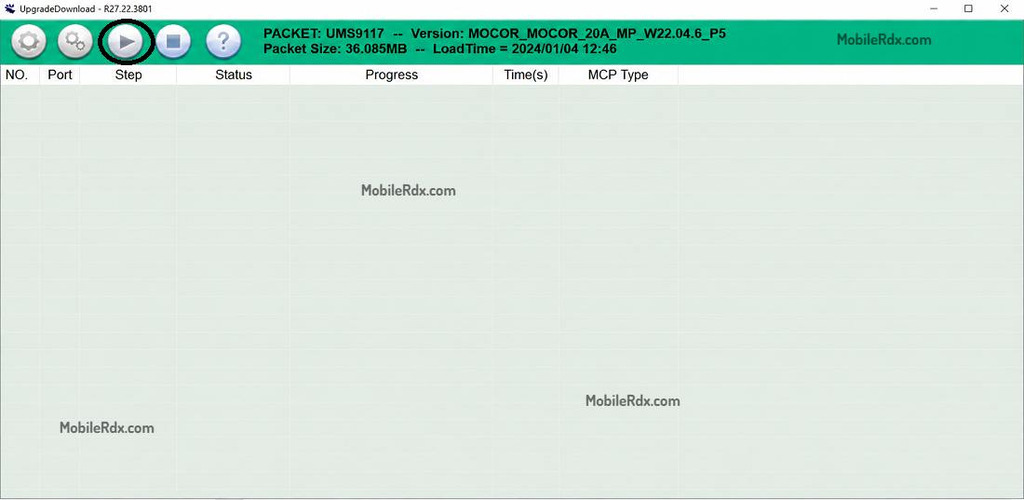
- Wait for the “Passed” or “Download Complete” message.
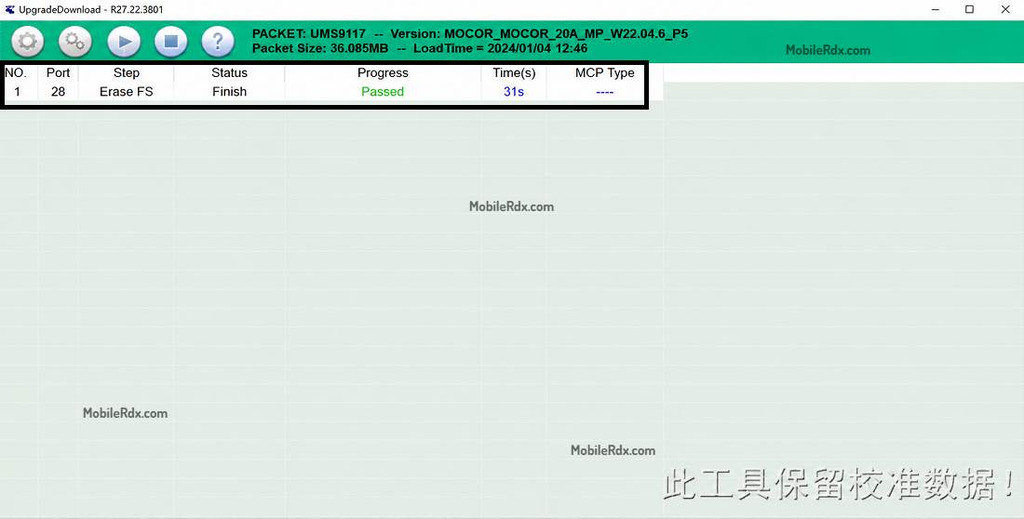
- Disconnect the phone and power it on after the process finishes.
It takes the first boot several minutes after flashing. Do not disconnect phone while firmware is written.
For another professional firmware setup, read our UMT Tool guide. You can also compare our Android Win Tool guide for Android devices.
Disclaimer: Firmware flashing should only be done on your own or authorized device. We are not responsible for data loss, interrupted flashing or damage from using incorrect files or tools.