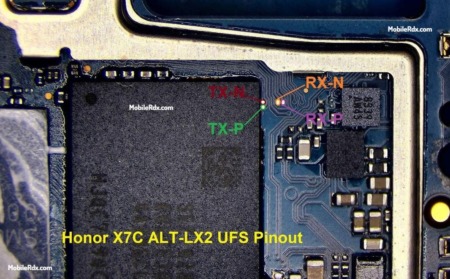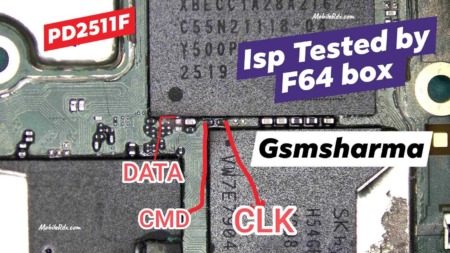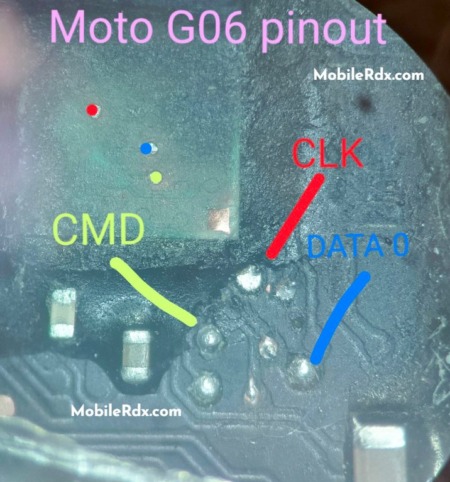

Hello, technicians! In this guide, we will show you the Honor X6e ISP Pinout and its connection. you can use this ISP pinout with a compatible tool such as Flash64, UFI Box or Easy JTAG. Plus, perform supported eMMC servicing operations, FRP Lock Remove, remove user lock,MDM lock remove read partition, restore firmware, and troubleshooting.
What Is Honor X6e eMMC ISP Pinout?
ISP means In System Programming. It lets you communicate with eMMC chips that are soldered to mainboards and does not require removal of memory packages. Instead, fine wires are connected to correct board points such as UFI Box, Easy JTAG Plus or Medusa Pro directly to the eMMC box.
Technicians use eMMC ISP for reading storage, backing up data, firmware work, and repairs of user data and certain FRP or boot repair tasks. For a reference that matches closely to the Honor X6, compare our Honor X6 eMMC ISP Pinout guide, but do not copy directly from that guide without checking the X6e board first.
Honor X6e eMMC ISP Pinout Image
Carefully remove the back cover. Check your tools and heat source. The factory adhesive on Honor X6eis quite strong so take your time to avoid breaking the back and damaging flex cables internally.
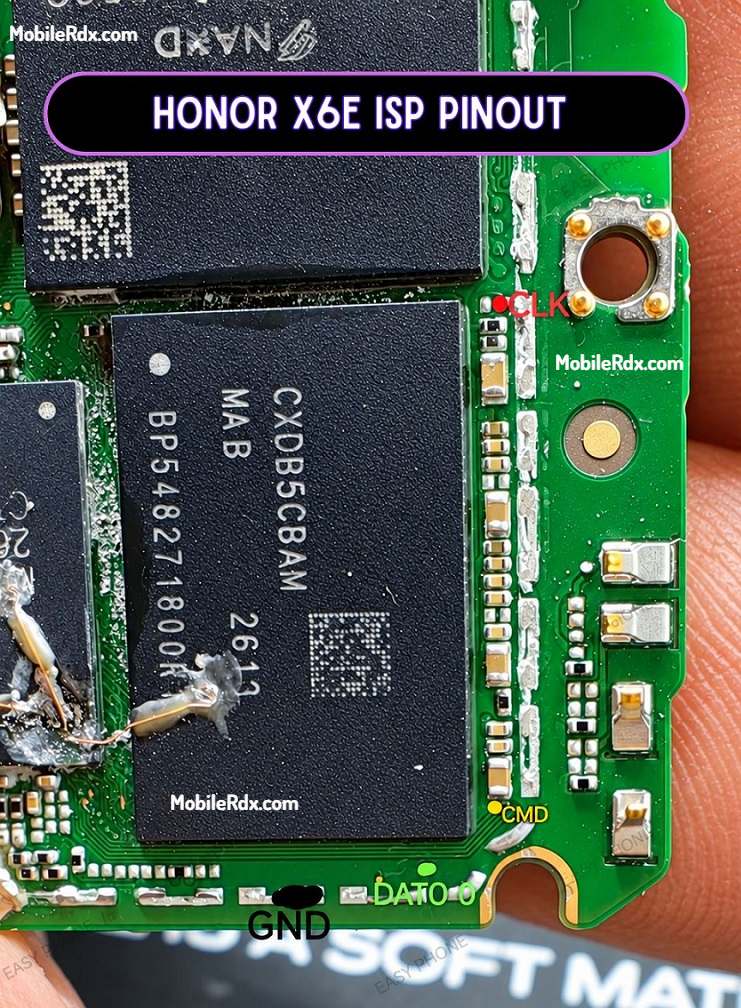
Do not use image of Honor X6, X6A or X6C for X6E pinout. Similar names do not mean same PCB wiring or storage.
eMMC ISP Pin Labels You Need
| Signal | Purpose |
| CLK | eMMC clock signal |
| CMD | Command and response line |
| DAT0 | Main data line used for eMMC communication |
| VCC | eMMC core supply |
| VCCQ | I/O voltage supply; confirm the correct voltage before connection |
| GND | Ground reference for the box and board |
The required ISP connection points identified by eMMC signal labels on motherboard of Honor X6e vary in physical placement depending on PCB revision and design of the board.
Honor X6e Key Specifications
| Device | Honor X6e |
| Model | Confirm the exact model code on the phone label and motherboard |
| Platform | MediaTek Helio G81 Ultra / MT6769 family (reported) |
| Storage | eMMC storage for the ISP workflow; confirm the chip marking on the board |
| ISP Type | eMMC ISP connection |
| Required Box | UFI Box, Easy JTAG Plus, Medusa Pro, or another compatible eMMC box |
| Main Use | Read, backup, firmware, boot repair, and supported userdata/FRP service |
| Board Warning | Use only after matching the exact PCB and storage layout |
Required Tools for Honor X6e eMMC ISP
- UFI Box, Easy JTAG Plus, Medusa Pro, or compatible eMMC programmer
- Fine-tip soldering iron or microsoldering station
- 30 AWG enamel wire or fine ISP jumper wire
- Microscope or strong magnification
- Flux, tweezers, solder, and isopropyl alcohol
- Multimeter for continuity and short checks
- Windows PC with the box software and drivers installed
- Stable USB data cable
Install the correct box software before connecting the board. Our Easy JTAG Plus setup guide can help prepare the PC for eMMC service work.
How to Connect Honor X6e eMMC ISP to the Box
- Remove the battery from the phone—this is very important to prevent voltage issues.
- Clean the PC board area with isopropyl alcohol.
- Connect jumper wires to CLK, CMD, DAT0, GND, and VCC points with care using solder.
- Connect the wires to your EMMC tool, following the tool’s pinout.
- Double-check each wire using a multimeter to ensure there are no shorts.
- Connect to UFI or Easy JTAG.
- In the UFI or Easy JTAG software:
- Select Identify eMMC
- You can now proceed to wipe the FRP partition, factory reset, or write a dump file to revive the dead boot.
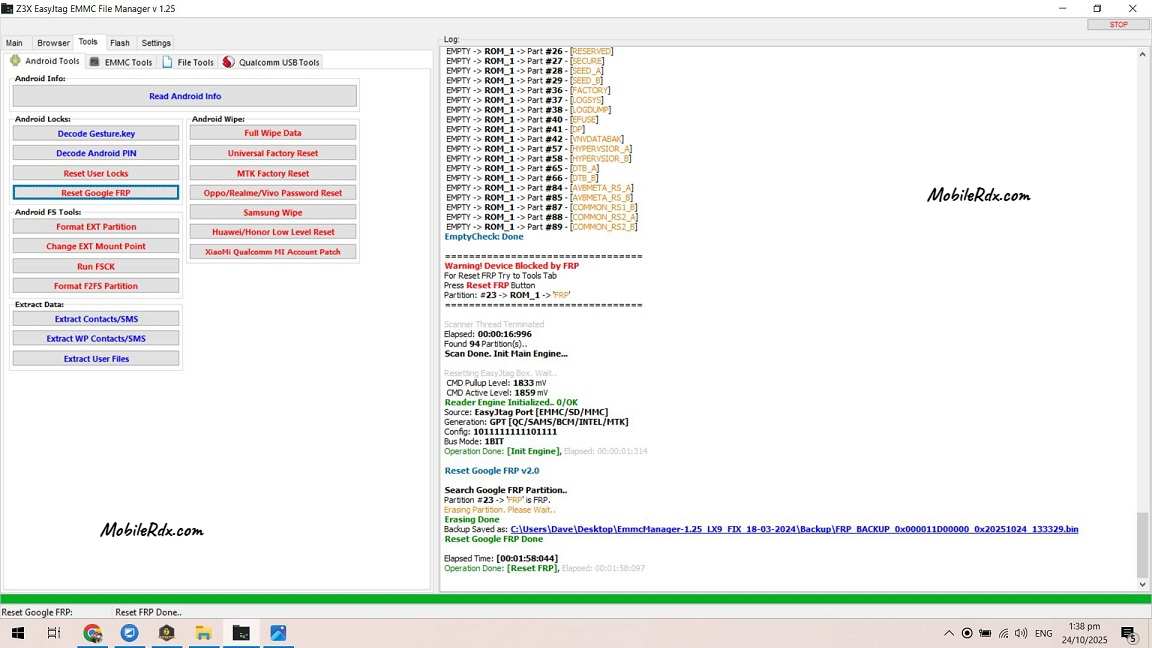
Backup Before Repair
Read the information about eMMC first and save CID, external CSD, user area, boot partitions and important device data if your box supports these functions. Backing up is important as it allows recovery if you write the wrong file or if the board loses contact.
Common ISP Connection Problems
- Box does not detect eMMC: Recheck CLK, CMD, DAT0, VCCQ, and ground wiring.
- Unstable identification: Shorten the wires, clean the pads, and check the voltage setting.
- Read operation stops: Confirm the eMMC type and use a stronger ground connection.
- Board heats up: Disconnect power immediately and check for a VCC/VCCQ short.
- Data is unreadable: Verify the memory mode and read speed in the box software.
- Phone does not boot after repair: Restore the original backup or use firmware made for the exact board.