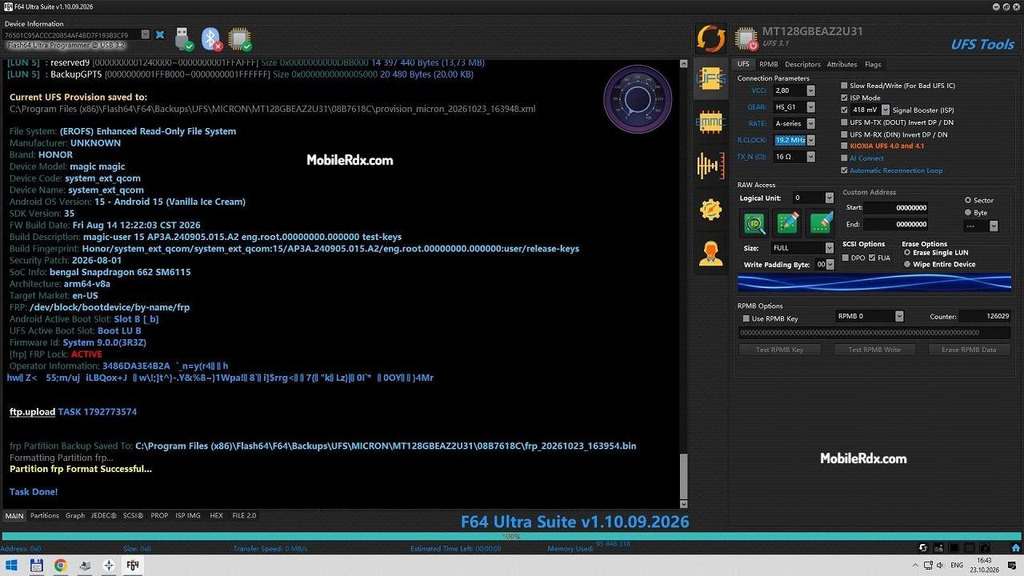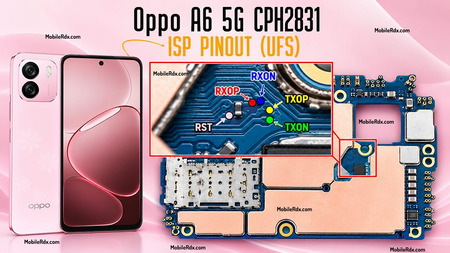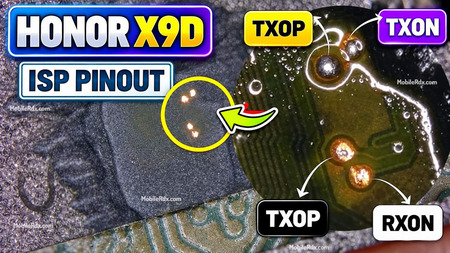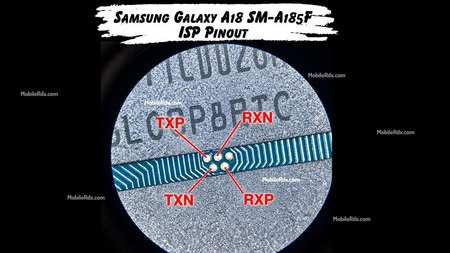

If you are searching for the working Honor X8c UFS ISP pinout, you are at the right place. The Honor X8c ABR-L32 runs on the Qualcomm SM6225 Snapdragon 685 platform with UFS storage. In this post, we have shared the tested ISP pinout points that work for restore the stock ROM, bypass FRP lock, remove MDM Lock, repair a dead boot, or clear user data directly through Flash64, UFI Box, or Easy JTAG.
What is ISP pinout?
ISP in system programming allows us to access the eMMC/UFS memory directly with the device still soldered to the PCB (printed circuit board) using a proper box/dongle, such as Flash64 UFI, Easy-JTAG, or Medusa.
By using the ISP pinout, we can perform operations such as a full dump, firmware update, boot repair, FRP removal, and security backup without requiring a chip-off procedure. That way, we reduce our time, costs, and risks of damaging the PCB
Honor X8c ISP Pinout Image:
Carefully remove the back cover of Honor X8c by applying controlled heat to soften the adhesive. The ISP Pinout enables you to carefully boot into Flash Mode. So, follow the methods below to successfully boot to ISP mode.
Pinout Labels:
RXOP – Receive Out Positive
RXON – Receive Out Negative
TXOP – Transmit Out Positive
TXON – Transmit Out Negative
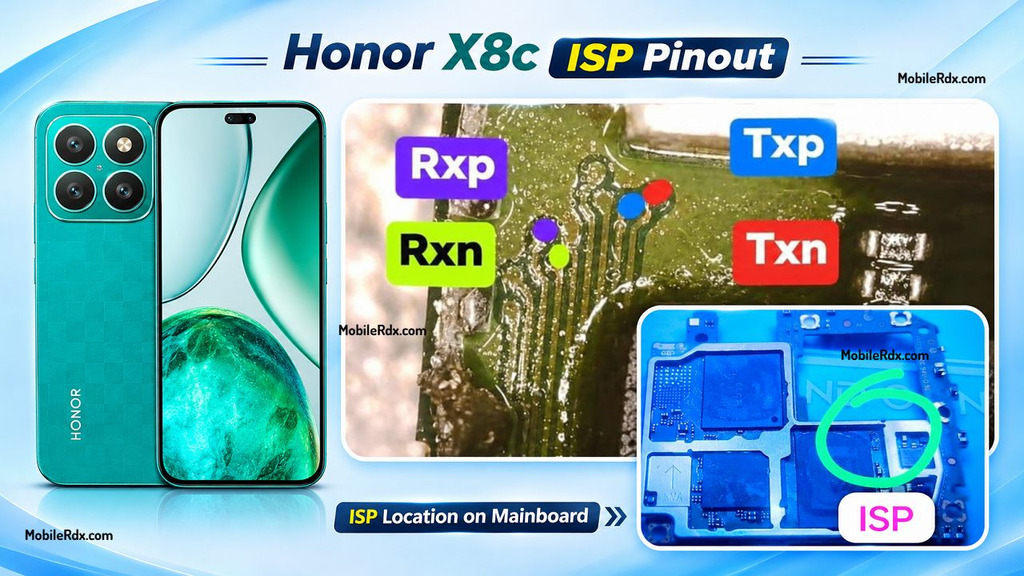
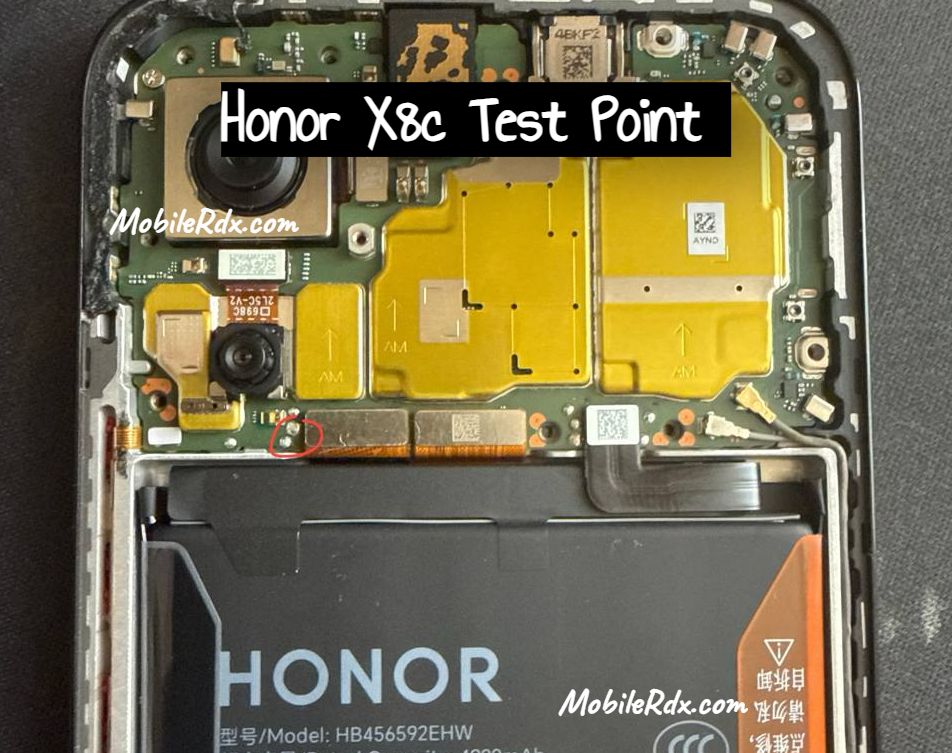
Tip: You can use a microscope or a 10x magnifier to identify the points correctly.
Required Tools for ISP Pinout:
- Make sure your table is set up with the right tools before jumping in:
- UFI Box, Flash64, or EasyJtag
- 0.1mm – 0.3mm jumper wire
- Fine tip soldering iron
- Isopropyl Cleaner (IPA 99%)
- Soldering flux
- Multimeter (for checking continuity)
How to Connect Honor X8c ISP to the UFS Box
1. Hardware Preparation
- Safety: Remove the battery to prevent electrical shorts or voltage surges.
- Cleaning: Use isopropyl alcohol to clean the ISP points on the PCB.
- Soldering: Securely jumper wires to the TXOP, TXON, and RXOP points.
- Verification: Use a multimeter to check for shorts between lines or to ground.
2. Box Connection
- Connect the jumper wires to your Flash 64 Box, UFI Box, or Medusa Pro adapter according to the tool’s specific pinout.
- Supply power to the board via the VCC/VCCQ pins or by connecting a USB cable to the device.
3. Software Configuration
- Open the eMMC/UFS tool software.
- Select Identify eMMC/UFS.
- Navigate to User Partition > Special Task.
- Select Reset FRP or Factory Reset to complete the operation.