
In this post, we’ll show you the Oppo A18 CPH2591 Test Point that helps you reboot to MediaTek BROM Flash mode and repair the Bricked Dead Boot Problem, Flash Unlock Pattern Bypass FRP Lock, Remove MDM and KG Lock, and resolve other software-related issues easily.
A test point is a special hardware point on the motherboard of the smartphone. By shortening the test points, you can force the device into (brom) mode, which allows the repair tool to communicate with the phone at a deep level. It is very useful for this:
What is Test Point
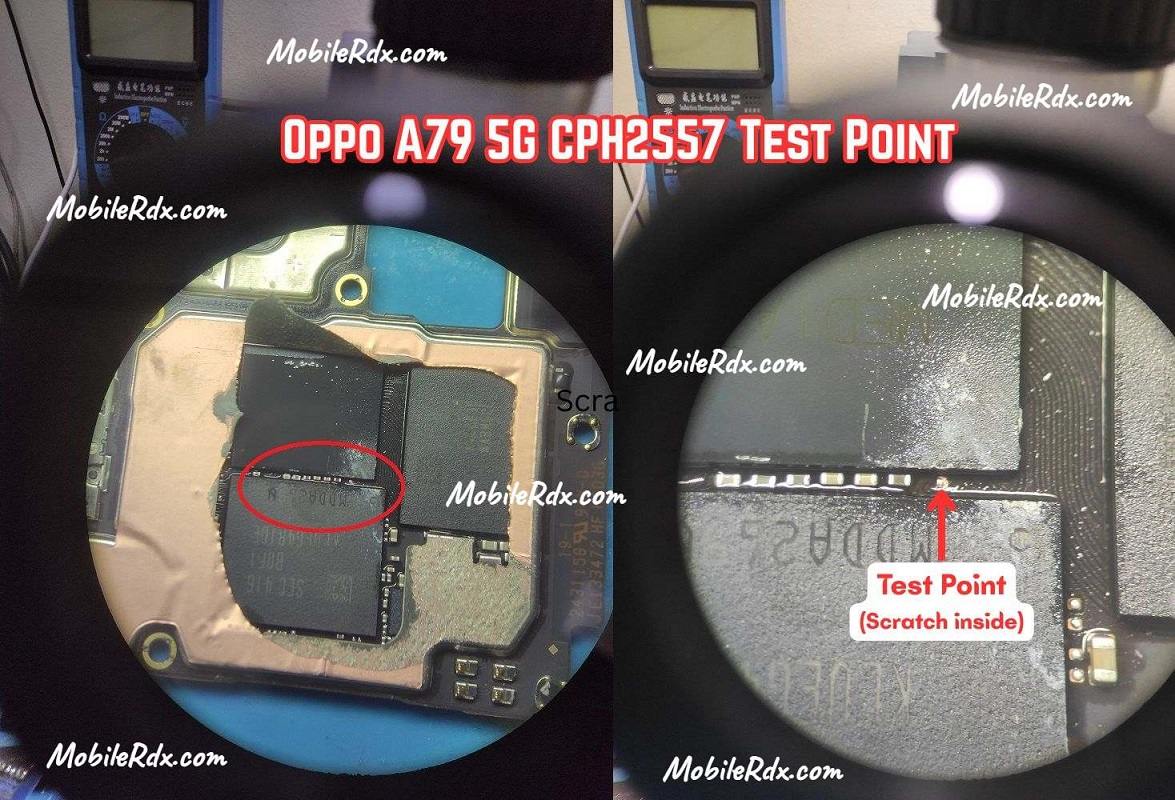
For Oppo A79 5G CPH2557, the test point is a small gold copper point on the main PCB used to force the phone into MediaTek BROM/Preloader mode when normal key combinations or software methods fail.
- Unbrick dead/bootloop devices by forcing detection as “MediaTek USB Port / BROM”.
- Perform FRP reset, pattern/password removal, and full firmware flashing using tools like SP Flash Tool or professional boxes (Easy JTAG, UMT, UnlockTool, etc.).
Required Tools and Preparation
- A good quality crew driver set, plastic opener, tweezers or copper wire, and optionally a microscope/10x magnifier to clearly see the pad.
- Quality USB cable, a Windows PC with MediaTek USB drivers, and flashing/unlock tools installed.
- Battery level: If possible, ensure some charge before disassembly; otherwise, use an external power supply or connect the battery when operating as per your shop practice.
Oppo A79 5G Test Point Image:
The following image will guide you through shorting the pinout and successfully rebooting your Oppo A79 5G to Emergency Download Force Brom Mode.
Model name: OPPO A79 5G, with model CPH2553/CPH2557.
Chipset: MediaTek Dimensity 6020 (7 nm), supports BROM/Preloader modes for flashing and unbricking.
Storage variants: 128 GB / 4–8 GB RAM and 256 GB / 8 GB RAM using UFS 2.2, important when backing up user data and dumps
Step-by-step Guide to Use Oppo A18 Testing Point
- First, switch off the Oppo A79 completely and remove the back cover.
- Disconnect the battery connector for safety.
- Locate the Oppo A18 test point on the motherboard (refer to the diagram above).
- Use a tweezer or jumper wire to shorten the test point on the ground.
- Connect the device to your PC using a USB cable.
- Open your Mobile Repair tool. and use the function you want.
- This process is not easy, so it is recommended that only experienced technicians attempt it. Running the test point incorrectly can cause permanent damage to the phone.
Frequently Asked Questions (FAQs)
1. What is the Oppo A79 5G Test Point? The Test Point is a small spot on the phone’s motherboard. You connect it to the ground (metal shield) to put the phone into EDL or Brom Mode. This helps you fix software and Lock problems.
2. Why do I need to use the Test Point? You use it when the phone is “bricked” (won’t turn on), locked, or if you need to flash the firmware and the buttons aren’t working.
3. Do I need to open the phone? Yes. You must carefully remove the back cover and the internal screws to reach the motherboard, where the Test Point is located.
5. Using the Test Point safe? It is safe if you are careful. However, opening your phone voids the warranty. Be very gentle so you don’t damage the small parts on the board.
6. Which port will show up in Device Manager? If done correctly, your computer will show “MediaTek USB Port” or “Preloader” under Ports (COM & LPT).
7. Is the battery connected? For most MTK (MediaTek) phones like the A79 5G, it is best to disconnect the battery, then short the test point and plug in the USB cable.