
Samsung Flashing Utility Download Free [Latest 2026]
If you need a free tool to flash Samsung firmware without Odin, here is Samsung Flashing Utility. It works with Samsung phones in download mode, supports BL/AP/CP/CSC files, and lets you flash, reset FRP, or reboot the device. No paid license needed.
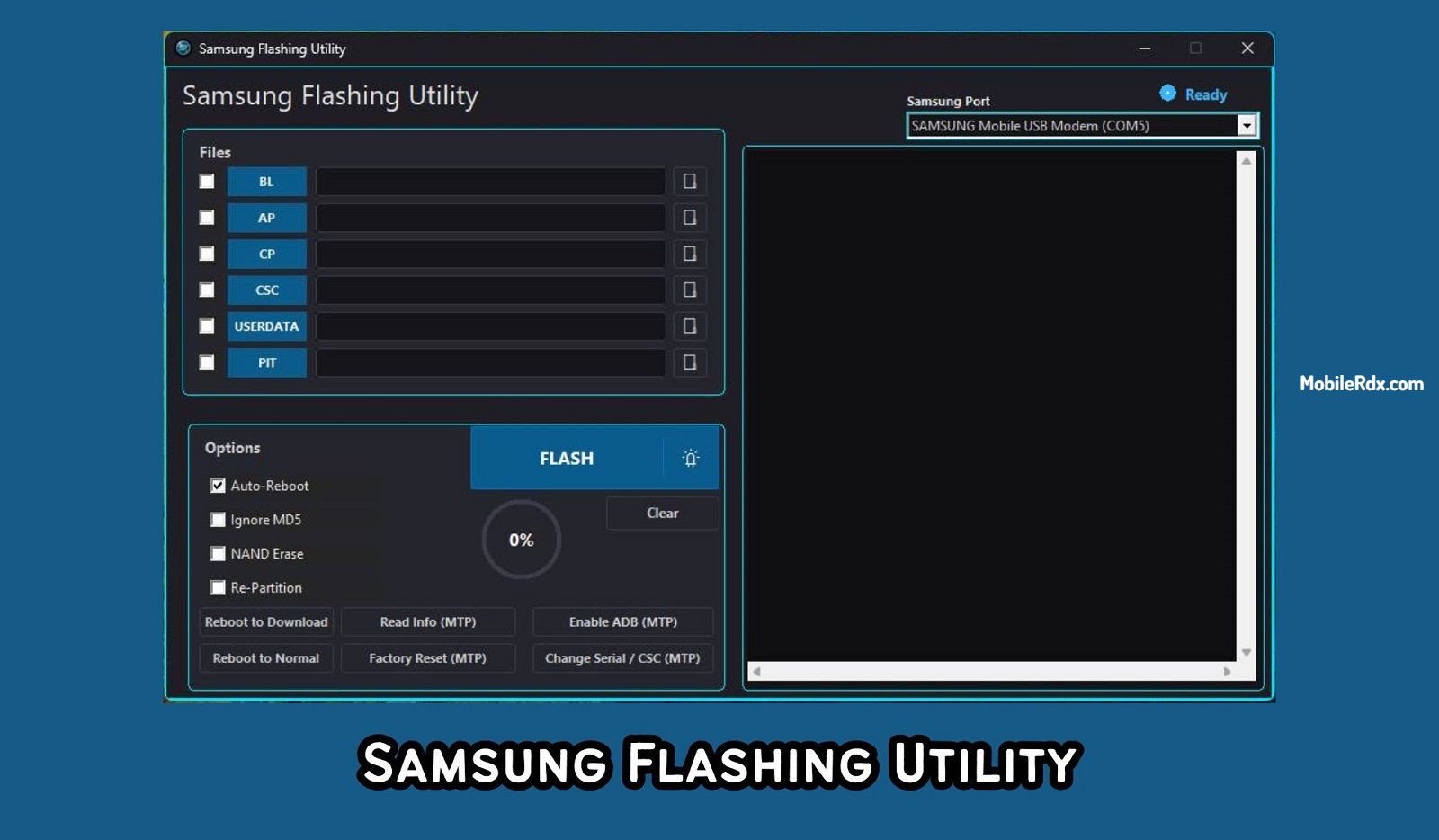
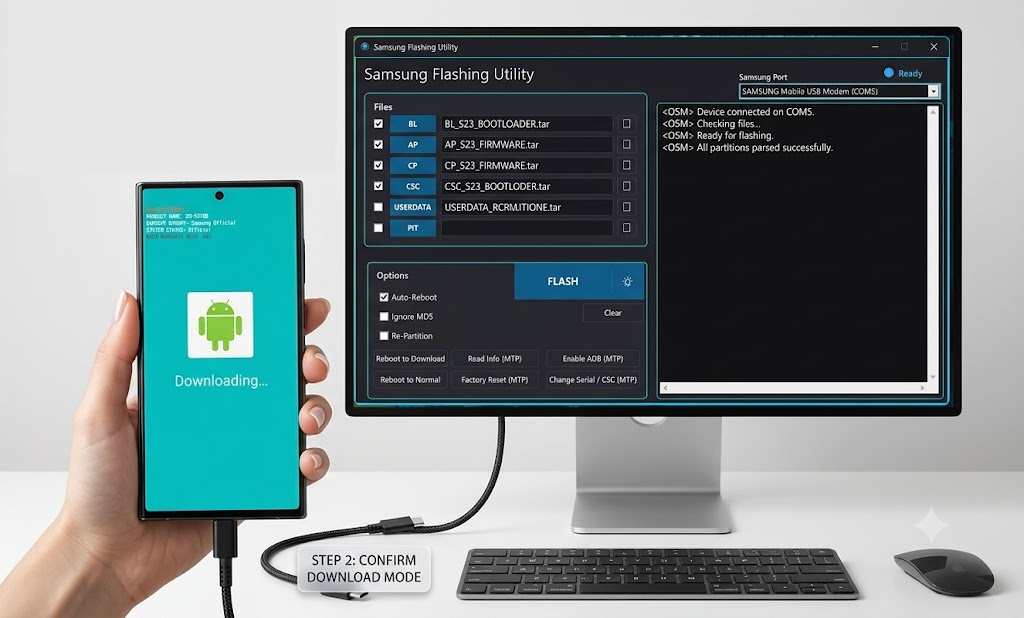
Samsung Flashing Utility is a Windows-based tool that connects to Samsung devices in download mode. The interface shows a Samsung port selector, file slots for BL/AP/CP/CSC/USERDATA/PIT, a FLASH button, and utility options like reboot to download, read info, enable ADB, factory reset, and change CSC. It is a good alternative to Odin for technicians who need quick access to Samsung device functions.
Samsung Flashing Utility Features
- Flash Samsung Firmware: Load and flash BL, AP, CP, CSC, USERDATA, and PIT files in one go.
- Auto-Reboot: Automatically reboots the device after flashing completes.
- Ignore MD5: Skip MD5 verification for custom or modified firmware files.
- NAND Erase: Wipe NAND flash before writing new firmware.
- Re-Partition: Repartition the device using a PIT file.
- Reboot to Download: Send the phone directly into download mode from the tool.
- Read Info (MTP): Read device information over MTP connection.
- Enable ADB (MTP): Enable ADB debugging on the connected device.
- Reboot to Normal: Restart the phone into normal mode.
- Factory Reset (MTP): Perform a factory reset from the PC.
- Change Serial / CSC (MTP): Change device serial number or CSC region.
- Real-time Log Output: View flashing progress and device response in the console panel.
What is the Samsung Flashing Utility?
Samsung Flashing Utility is a desktop flashing tool for Samsung Galaxy devices. It connects to the phone in download mode through a Samsung USB port and lets you write firmware files to the device. It supports all major Samsung firmware file types and includes extra tools for FRP reset, ADB enable, and CSC changes. The tool is free to download and works on Windows 10 and Windows 11.
Download Samsung Flashing Utility
Click the button below to download the latest version of Samsung Flashing Utility.
File: Samsung_Flashing_Utility_v1.0.zip
Size: ~15 MB
Platform: Windows 10/11
How to Use Samsung Flashing Utility
Follow these steps to flash firmware using Samsung Flashing Utility:
- Download and extract Samsung Flashing Utility on your Windows PC.
- Run the tool as Administrator.
- Boot your Samsung phone into Download Mode (Volume Down + Power).
- Connect the phone to the PC via USB cable.
- Select the Samsung port from the dropdown menu.
- Check the BL box and load the BL firmware file.
- Check AP, CP, CSC, or USERDATA boxes if you have those files.
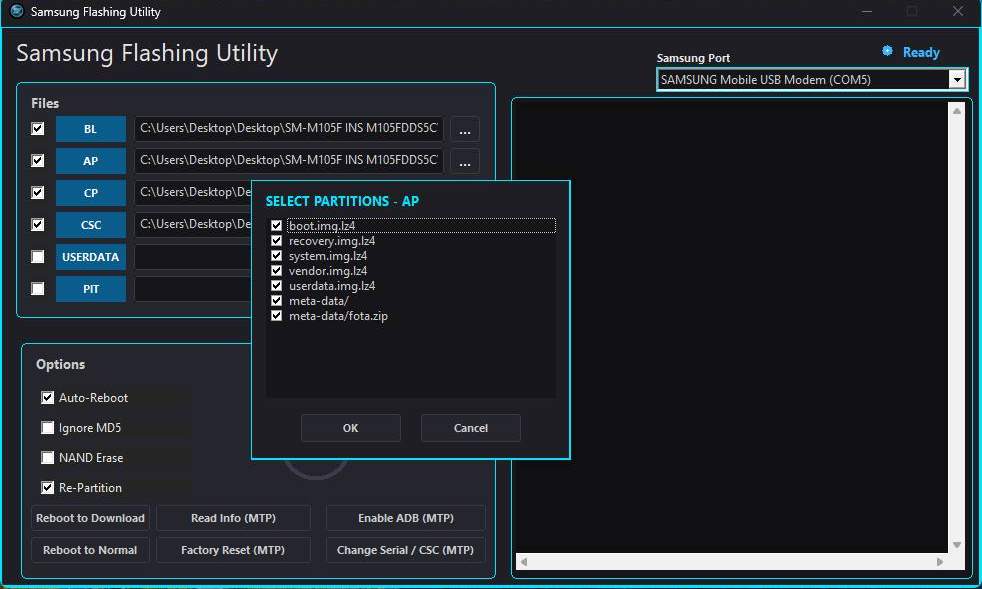
- Enable Auto-Reboot if you want the phone to restart after flashing.
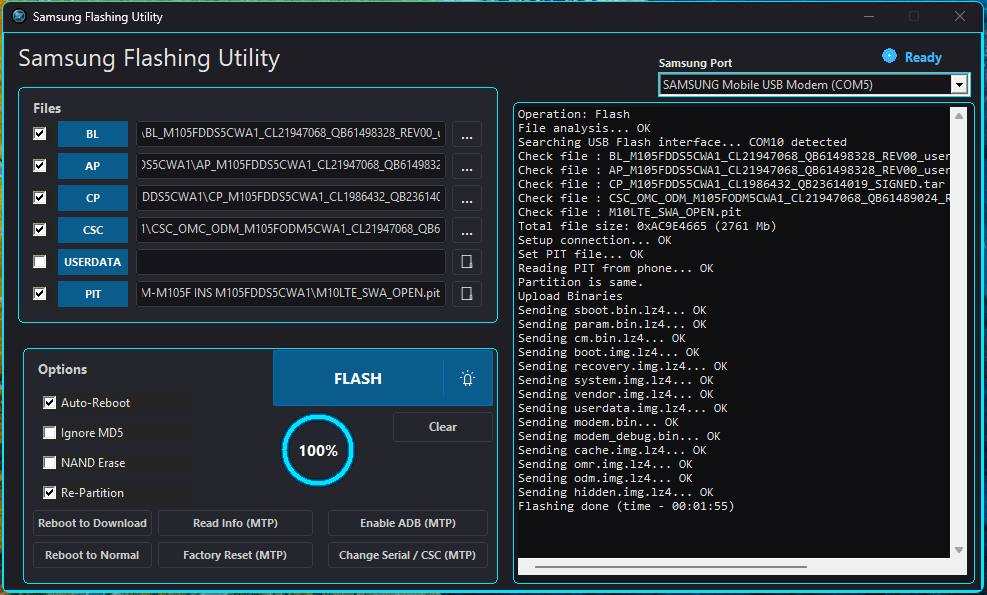
- Click the FLASH button to start the process.
- Wait for the progress bar to reach 100%. Do not disconnect the USB cable.
- Once done, the phone reboots automatically (if Auto-Reboot is checked).
System Requirements
- Windows 10 or Windows 11 (64-bit recommended)
- Samsung USB drivers installed
- USB cable with data transfer support
- Samsung phone in Download Mode
- 4 GB RAM minimum
Frequently Asked Questions
Yes, Samsung Flashing Utility is free to download and use. No license or paid subscription required.
Yes. It works like Odin and supports the same firmware file types (BL, AP, CP, CSC).
Yes, it works on both Windows 10 and Windows 11.
The tool does not have a dedicated FRP reset button, but you can flash stock firmware to remove FRP lock.
It supports most Samsung Galaxy phones and tablets that use download mode for flashing.
Wrapping Up
Samsung Flashing Utility is a solid free alternative to Odin for flashing Samsung firmware. It covers the basics — flash BL, AP, CP, CSC — and adds useful extras like reboot to download, factory reset, and CSC change. If you work with Samsung phones regularly, keep this tool on your PC.